Forum menu
The fan sounds like it is going to take off and the underside is very warm.
Is it going to die?
No.
Laptops get warm when they are using a lot of power. They use a lot of power when they are doing a lot of work. So unless you are processing videos or similar, some process is taking up a lot of CPU. It's either some shitty software that you've installed; some software that's gone bananas; or malware.
If restarting doesn't stop it, then try opening up task manager and seeing what's using the CPU.
CPU is running at 50%... hmmm...
I'll as the IT bod at work to have a look.
Further hmmm....
svchost seems to be using almost all of the 50% CPU usage.
not unusual if there is a big Windows update coming in. There is a major Windows 10 update coming out at the mo so it might be that. Restart the machine and see if it does a bunch of updatessvchost seems to be using almost all of the 50% CPU usage
Or the fan inlet is full of dust, so needs to run faster to get the air flow it needs. A quick blast of compressed air should clear it.
Hoover the CPU vent
Been doing it for a few days now. Still running Windows 7.not unusual if there is a big Windows update coming in. There is a major Windows 10 update coming out at the mo so it might be that. Restart the machine and see if it does a bunch of updates
Still looks like it is a load of updates that came out today though
http://arstechnica.com/security/2015/12/december-patch-tuesday-avalanche-of-patches-includes-leaked-xbox-certificate/
(actually it usually comes out on the 2nd tuesday of the month so it would fit)
Do not take any notice of me if the laptop is still under warranty...
But if it is not then take the carcass apart (Youtube is your friend here) and carefully clean the fluff out of the fan and the heatsink. Far better than sucking or blowing through the vents which can move the fluff into the wrong places and even damage the fan (trust me, I have bought a new fan in the past). In fact whilst you have the machine apart take a photo of the fan just in case you need a new one.
Did I mention not to take any notice of me if the laptop is still under warranty?
What he said. ^^
Also, are you using it on your lap? If so, put it on a table, the lap is a lie. As your legs aren't nice and smooth like a table and will probably be blocking air vents.
The fan thing - that wouldn't suddenly happen, imo. It'd get gradually worse, and whilst there will be dust in there I've never seen any get so dusty as to cause the fan to thrash, and my hosue is dusty as hell.
And, you've already found something using 50% CPU so that'll definitely be it. Don't start taking it apart.
Svchost is the process that runs windows services. If you go to the 'resources' tab in task manager and click on 'resource manager' you'll get something like task manager but much more useful. On the CPU tab of that, there's a section marked 'services', and that lists the names of the actual services by CPU usage.
Could still be windows updates and a problem with Win7 🙂
https://support.microsoft.com/en-us/kb/3102810
I've never seen any get so dusty as to cause the fan to thrash
I've seen loads, so don't rule it out.
I've peeled fluff so thick out of laptops it's more like sheets of felt, it just comes out in one big wad!
If it is fluffed up, the fan will be constantly fighting to bring the temperature down, hence the noise.
The first thing I'd do before taking it to bits.. Laptops are a pain to dismantle /reassemble.. Is as suggested above.. Monitor task manager.. If it's not constant.. You can probably narrow it down to a specific intensive event.
If you really want to be specific, download coretemp.. That will tell you the real time temperature of the cpu, so you can cross reference temperature spikes with processes in task manager.
Can I suggest a simple mechanical test - hold your palm near to the output grille from the fan.
If you can feel a gentle cool airflow then the fan is working. If you feel a hot airflow then it may be a cpu workload issue. If you can feel radiant heat but no flow of air then fluff may be your problem.
And if it is under warranty then please ignore me...
whilst there will be dust in there I've never seen any get so dusty as to cause the fan to thrash
I have. Mine spent months overheating to the point where it actually shut down, I took it to bits repeatedly and couldn't find anything. Then one day I got a pair of SAK tweezers inside the heat sink / vent assembly and dragged out a dust bunny the size of my thumb. As Matty says, it was like a big lump of felt.
Svchost is the process that runs windows services.
Svchost is a container. You can use Sysinternals' ProcExp to drill inside Svchost and find out what the service actually is.
Here's a pic of my old (very old lol) graphics card clean up.. Not a laptop but same principle applies..
That brown rectangular object is not Moroccan hash, it's what I pulled off the radiator grill next to the fan.. It was basically completely blocking the air flow..
[img] 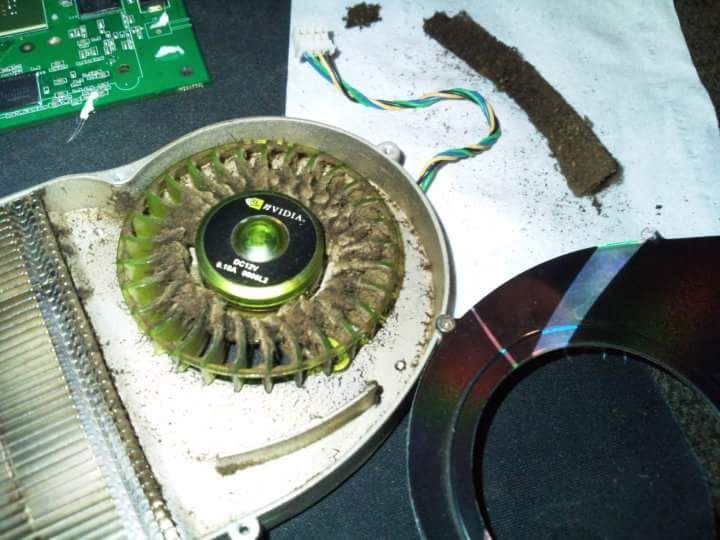 [/img]
Had exactly the same thing last night on a windows 7 laptop. It was doing a big update and then got really hot, then turned off. Did this a few times, then I gave up and went to bed (work not finished). This am it was fine again and then midday today it did another update and is all good again.
Might try Cougar's cleaning tip too ^
If you feel a hot airflow then it may be a cpu workload issue.
But given that we already know the CPU is under load..... A cpu under 50% load will definitely be warm in a laptop, dust or not.
That's the reason that FGF doesn't get done till after lunch some days... 😉
My daughters have to play Sims (3 & 4) with the laptop on a tea tray with the fan side slightly raised on the lip of the tray, otherwise heat death.
I have a hardware monitor program running so I can track what it's all doing. You can actually see what the fan is doing, rather than what you think it's doing. (Stock fans are horrifically noisy. What might sound like *flat out* may only be 50%, higher than usual, but still a long way to go)
The aftermarket fans I use now you can barely hear them at 50% and you need near enough full speed to hear them outside of the cabinet. (But they've never actually gone above about 50% in normal running.......)
The ones I took out are loud at 50% and you worry about vibration damage at 100%. Which they used to hit fairly regularly.
If you can bypass your vacuum cleaner nozzle, set that open a bit and wriggle the end over the intake(s).
Turn it off first.
UPDATE
It downloaded a big Windows update last night and now all seems to be tickerty-boo. Speed is back up, CPU usage is at usual levels, fan is quiet.
If the laptop doesn't have an SSD drive you could consider upgrading the hard disc to an SSD. They have no moving parts and run cooler. The system will be a lot faster too when launching applications, switching between them etc. It might help prevent the main fan ramping up to high speed, though depends if the fan speed is controlled by temperature or just the CPU usage.
Temperature and CPU usage are directly related, there's no 'or' in it
Upgrading to SSD, although not related to the overheating, is a very wise move (assuming RAM has already been upgraded first). The cost of SSD is really cheap now.
Yeh the only heat sources to consider in this case is the CPU and if you have a graphics card, the GPU, on laptops these are normally connected to the same cooling system (fans/vents). if the vents are obstructed with dust build up, the heat gets trapped inside the computer.
Although SSDs do run cooler, Regular hard drives don't get hot enough to cause stability issues.
Basically your fan speed will increase to compensate as CPU temperature rises, to try and bring the temperature down. There is a 'target temp' set in BIOS, (60c for example)and when the chip exceeds it, the fans kick in, and spin faster as the temp rises.
If the sensors detect the CPU core hits a certain high temp, (cant remember I think its about 90c but varies slightly from chip to chip) the computer will shut itself down to prevent the heat damaging the CPU.
xiphon - Member
Temperature and CPU usage are directly related, there's no 'or' in it
There is when the temperature is raised by a hot hard disc even just spinning idle and CPU low.
Temperature does of course raise with CPU, but there are other factors. Blocked vents as above also.
But basically if the system fan doesn't work off a case sensor then it doesn't matter, as it will only kick in when the CPU is high, even if the case is hot.
Anyway, an SSD at the very least will be quieter. Still that noisy system fan to deal with, but it's one less noise.
Hard drives simply don't get hot enough to affect stability unless they are faulty, but it's not something Ive ever come across. Heat issues are almost always High cpu load, or poor ventilation, or both.
For example my system, right now, in a fairly idle state (just surfing the net)
CPU (4 cores) between 40 and 50c
Graphics core 35c
Graphics Board temp 30c
Hard drive (main system)20c
Hard drive (storage, idle) 14c
In a laptop, the Hard drive may well run warm, but it will be getting warm because its such a compact box, it'll be the CPU that's warming it up.
Thats not to say SSDs are bad, they are much better than spin drives, but I'd bet they have nothing to do with this issue.
Stability isn't the issue, it's just the fan kicking in to cool things down and causing excessive noise which concerns the user as the OP has shown. But as I say, if there's no case sensor that can cause the system fan to crank up then hard disc temperature is not relevant (other than a hot lap 😉 ). If there is one though then an SSD might help it keep cooler.
Like I said, an SSD in a laptop will barley make any difference to temps, and thus, subsequent fan noise to compensate.
The CPU generates (by far) more heat, and the compact laptop case will warm up the HDD or SDD as a consequence.
Laptops generally don't have 'system' fans, they'll have one 'CPU' fan and one vent system, that's primarily to keep the CPU cool, if a separate GPU is present, that will also be connected to the cooling system.
I only mentioned stability, as if the fan can't exhaust the heat fast enough when spinning at full tilt, the CPU temp can easily rise above 90c, then you will have stability issues and possibly shut downs to protect the cpu from being cooked.
I think these days Intel chips will just throttle,they're pretty indestructible.
Eventually an overheating laptop will fail from all the trapped heat. Especially if you carry it around- motherboard solder.
Yeh that's where stability comes in, if cpu throttles back speed to bring down temp (this would be after the fan can no longer compensate for the temp), but the task or tasks you are doing require more cpu power than is available due to the throttle, one or more of those tasks will grind to a halt.
I run mine overclocked, and have turned off throttling, so I just rely on thermal shutdown as a safety net, I think that occurs at just over 100c..but this is after running cpu intensive benchmarks whilst monitoring temps to identify how hot my cpu can get at a given speed, which is about 85-90c under 100% cpu load for periods of up to half an hour. in reality it'll never have 4 cores at 100% for that length of time, so I've kind of established my own safe operating temps/speed.