Forum menu
Hi,
Can anyone suggest reasons why my laptop won't let its CPU cores go over 30%? I've toggled many options in the Power settings to try to get it to never save energy but it still seems to be stuck at 30% max
[img]  [/img]
Any ideas? I know it's far from the latest gen CPU model, but it shouldn't be as slow as this (it should be 2/3rds-and-a-bit quicker)!
Heat.
You possibly need to remove the base plate from the underside of the laptop and give it a good clean (hoover) - you should see some heat pipes or similar. Also check the cooling fan is spinning.
If battery saving mode is on, turn it off...
Your running applications that will not multi thread? (there are quite a few)
What are you trying to max it out with?
Download a program called cpuz, this will tell you what temps things are running at and whether fans are spinning etc. Sounds like it could be thermal throttling.
I found this which may help.
This problem is specific to LAPTOP computers due to it having a BATTERY.
In Windows 10 the there is a setting to go into Power saving mode when the power drops below 20%
This forces the computer into GO-SLOW mode to conserve battery power, and it caps CPU usage at 30%.To resolve it, I did the following (perhaps this could work for you too):
1. Double-click the battery icon (not right-click) at the right-bottom of the screen (in the tray)
2. Click "Battery Settings"
3. Untick the option for: "Turn battery saver on automatically if my battery falls below..."
4. Disable the setting: "Battery saver status until next recharge"
5. Unplug the charging cable and re-plug it into the charging port of the laptop.The battery icon at the right bottom of the screen should now change to "Charging".
After this the CPU started running at 100%, 2.48Ghz and the machine worked well again.
For good measure, click on the battery icon again and set the power mode to "Best Performance"
Note: I noticed that all the battery settings for "Pressing the Power Button", "Pressing the Sleep button" and "Closing the lid" were set to SLEEP. So I guess that every day when the client went home, he closed the lid and put the laptop away. This totally drained the battery, and because the setting was enabled to use Battery Saving when power dips below 20%, every morning the laptop would be SUPER slow. The problem was, that it never charged either, so it would STAY slow.
Whether the Battery Saver setting disabled the battery from charging I can't say for sure.
To avoid the problem for this client, I changed most settings to "Shutdown" and some to "Hibernate" instead of "Sleep".
Thanks for the suggestions, unfortunately I'm at work at the moment so can't try them until tonight.
As far as I'm aware I've been through all the power management settings, but I'll work through that list to make sure I've not missed anything. My battery is definitely knackered and holds about 20s of charge, so this was my suspected main culprit.
The exhaust ports don't look especially dusty but I'll open it up and check what it's like inside - CPUz is a good shout, I've not used that for years.
Regarding multi-threading, I don't think that's the issue; in the above screenshot I was running several Chrome tabs, Windows Update, and Paint.net, but previously I've run all kinds of things and it wouldn't budge over 30%.
It's been doing this for several months, initially I thought it was a rogue Windows 10 update that was causing a problem, but a full reinstall made no improvement. General apathy has meant I've not investigated it further however Mini-verses is now complaining about it and wants me to spend actual money on a new laptop so I've suddenly become motivated to get this one running well again. It's a Lenovo T440 with an SSD drive, so hardly cutting edge these days, but should be more than capable for general day-to-day tasks. Certainly it should be more capable than it currently feels.
If your battery is knackerd then I suspect this is key:
3. Untick the option for: “Turn battery saver on automatically if my battery falls below…”
4. Disable the setting: “Battery saver status until next recharge”
Otherwise the CPU will be constanty locked to limp mode, 30% utilisation, and speed locked down to ~0.8GhZ, hence the terrible performance.
A few ideas:
+1 on what mattyfez said.
Of note here is that it appears to be frequency locked - I'm pretty sure you don't have a 0.79GHz CPU.
First thing I'd do is pull the battery and run it on mains, see if that makes a difference. Then do it vice versa, battery only, see what happens.
Some laptops will detect what power adapter they're running from and throttle the CPU if it thinks it's not up to scratch. My Dell does this and I think the Lenovos do it too - it's the tiny centre pin in the plug and can easily break. If you can, try another power brick. I might have a spare lying round here somewhere if you're stuck.
Intel use a technology called SpeedStep which will throttle the CPU back to save power when the performance is not needed. In the server world at least you can disable this (in can cause major problems with SQL for a start), look for a "maximum performance" setting in BIOS.
As for heat, is the fan running flat out? Some Intel CPUs will throttle back if temperature is too high (as fossy suggested). That's not just CPU temperature, it can do it to protect the GPU or other components too. There's an app called Throttlestop which allows you to switch it off (the setting is BD-PROCHOT), this may be useful very temporarily as a troubleshooting step but you really don't want to use it as a fix because if this does resolve the issue you need to get to the root cause before your laptop burns up. It's kicking in for a good reason.
You said, "The exhaust ports don’t look especially dusty" - it probably won't. A few years back I was having thermal issues with my Dell for months, it'd spontaneously shutdown under heavy load and the fan ran full tilt all the time. I had it in bits multiple times and it all looked clean. Then on one tear-down I spotted a previously unnoticed bit of fluff in between the fan and the exhaust (they're like 1mm apart). Took a fine pair of tweezers to it and carefully extracted a dust bunny the size of my thumb.
If you do go down this road then Lenovo have the full service manuals free to download on their website, it'll give you full teardown instructions. Up to the T420 you'd go in through the keyboard for this, it's like two screws and it's a piece of piss, but from the T430 onwards with the chicklet keyboard I think it's a bottom-up job. But eh, the manual will tell you.
you got these set to 100% (for all the different power settings, battery save, high performance etc?)
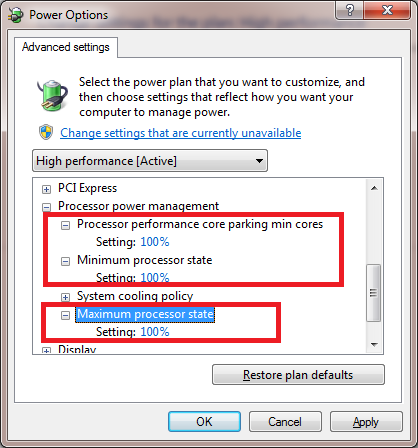
Not had chance to dismantle the lappy yet, but the power/battery settings look like those suggested above. I'm also running with the battery removed, however it's made no difference.
My CPU temp is as follows - not sure what that suggests (if anything);
[img]  [/img]
Next job is to play with ThrottleStop
Throttlestop is wonderful! All I've done is clicked "Set Multiplier" changed it from 8 to 25 and clicked "Turn on". The lappy's running beautifully now, if only I could identify the cause of the multipliers being reduced...
[img]  [/img]
Your CPU temperatures are fine.
I'd be looking at buying a new battery before you start thinking about dismantling the laptop..
Oh ok cool 🙂
I'm guessing windows was freaking out as you still have the issue of a knackered battery, so it's a case of somehow forcing it to stop going into 'limp mode' in a pointless effort to preserve battery life.
Just re-read Cougar's post and have now reverted my changes to the multiplier, and disabled BD-PROCHOT instead and it still seems good.
Actually, I've now reverted all the settings and exited Throttlestop and the CPU still seems to be behaving... Very odd.
I tried a reboot, after coming back up it is glued to 30% again.
Disabling BD-PROCHOT is now having no effect.
That's really weird. Chipset throttling usually shows up as one or mote 100% busy cores on the individual bit of the Taskman screen. I reckon something else is going on.
Just popped the keyboard out and there's barely any dust in there.
Seems odd, but could it be driver related in some way?
I started looking for drivers on the Lenovo site, there was a Bios update which I ran and after rebooting all seems to be working.
I'll not count my chickens just yet, but so far so good...