UPDATE: Reviews section refreshed, redesigned, searchable: Go take a look
Having a nightmare with Photoshop. I've got a jpeg of a logo, which is a white background with a red and black design. I need to get rid of the white background so I can use the logo on a different colour background without having a big white square. I've done this sort of thing before with background eraser, but when I try it on this image it's not showing the checkerboard for the pixels I've erased.
Seemingly, it is working, because if I then paste it onto a black background, I can see big, black brushstrokes, but I can't see it when I'm actually doing the erasing.
Is there something really obvious I'm missing?
is the logo on a layer rather than the background?
Nope it's only showing the background, no other layers
duplicate the background layer and edit what you want to remove in this new layer. you can then add this layer over any other colour/image you want to place behid it.
Have you tried using the magic wand tool to select the background colour?
gozarchIs there something really obvious I'm missing?
The ability to use photoshop 😆
(sorry)
Create a new layer below the one you are working on. Fill that with a colour (lime green). Rub out the top layer until you can see the lime green every where you want transparency
You can always delete the layer below later
The final image will need to be saved in a way that support transparency. No idea how you do that
Yeah, thanks jimjam 😉
I wouldn't mind if I hadn't done the same thing successfully before!
Duplicating the background doesn't seem to work. I still can't see the areas I've erased - everything is still just white. ampthill, I've already tried that, too.
It's this image (can't link properly due to out-of-date browser!) In the library, it looks as though it has a black (or no) background, but that's not the case when I paste it somewhere.
 .html?sort=3&o=0
It's doing my head in.
Hmm, using magic eraser on the iMac (and version of Photoshop that wasn't invited when Noah were a lad) worked first time. All very strange. Thanks for the input, though.
double click the layer to active it, so it turns from background to layer 1.
select > color range > dropper the white background > shift fuzziness slider to 200 > ok > this has highlighted all your white > delete.
Save as pdf, psd, tiff, png, gif. depending on the usage if you want to keep the transparency outside of photoshop.
Your image is also in CMYK, so you'll want to change to RGB if you want to use it for the web (png/gif.) image > mode > RGB.
gozarch - just did it in 1/2 a second - email me!
You mean like this?
[img]  [/img]
Or like this?
[img]  [/img]
Or perhaps, you mean like this?
[img]  [/img]
[img]  [/img]
Any better? come on back to me here. Let me know.
Surely like this?
[img]  [/img]
Ah good, a photoshop thread!
tell him for god sake! though you should add a mask to the flag on the multiply layers assuming the logo on the flag should be white.
Photoshop thread is golden!
[img][url= https://c4.staticflickr.com/6/5490/31291416075_d3b764a760.jp g" target="_blank">https://c4.staticflickr.com/6/5490/31291416075_d3b764a760.jp g"/> [/img][/url][url= https://flic.kr/p/PF7FPH ]C&CC[/url] by [url= https://www.flickr.com/photos/59129788@N05/ ]bushmills77[/url], on Flickr[/img]
[img]  [/img]
/sits down with tea and biscuits.
Chocolate finger Drac?
Gah! My new PC doesn't have photoshop on it!
That's why you should have bought a Mac. Macs are best for photoshop.
Gah! My new PC doesn't have photoshop on it!
I did my version in [url= http://www.getpaint.net/index.html ]paint.net[/url] - which is free.
For any non-photoshop folks
will tranform most to graphic file into PNG and allow colour to be edited to transparent
Haven't got time to read the whole thread (I usually do, honest) but save it as a gif and your problem is solved. Apologies if this has already been recommended.
Edit- sorry png not gif.
[img] 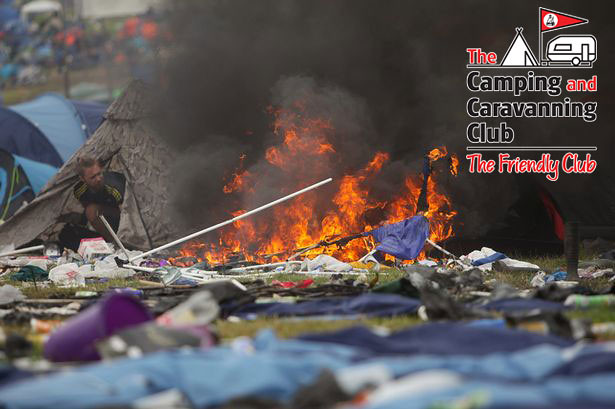 [/img]
[img]  [/img]
Dunno much about Photoshop, but that logo is a crime against fonts.
There are all manner of crimes being committed with that logo. Not least the third reich colour scheme, complete with swastika-esque standard/flag 🙂
[img][url= https://c4.staticflickr.com/6/5763/30489887283_1b99a6ddcb_z.jp g" target="_blank">https://c4.staticflickr.com/6/5763/30489887283_1b99a6ddcb_z.jp g"/> [/img][/url][url= https://flic.kr/p/NshDeM ]CCC[/url] by [url= https://www.flickr.com/photos/59129788@N05/ ]bushmills77[/url], on Flickr[/img]